
How To Set Up Garmin Watch With Apple Health
Last updated: October 29, 2025
Understanding Garmin Sleep Tracking and Apple Health Integration
Garmin watches provide comprehensive sleep tracking and integrate with Apple Health. This guide helps you set up optimal monitoring and data sharing between Garmin Connect and Apple Health.
What Sleep Data Gets Shared
When connected to Apple Health, your Garmin device shares essential sleep metrics including:
- Sleep analysis and patterns
- Heart rate data (daily tracking and high/low values)
- Active and resting energy
- Additional metrics such as body fat %, BMI, and weight
Why Sleep Tracking Matters for Livity Users
Consistent sleep tracking via Apple Watch or Health‑compatible devices helps Livity to:
- Calculate accurate Sleep, Recovery and Strain metrics
- Provide personalized health insights
- Track sleep quality patterns
Setting Up Garmin Connect with Apple Health
Follow these steps to connect your Garmin device:

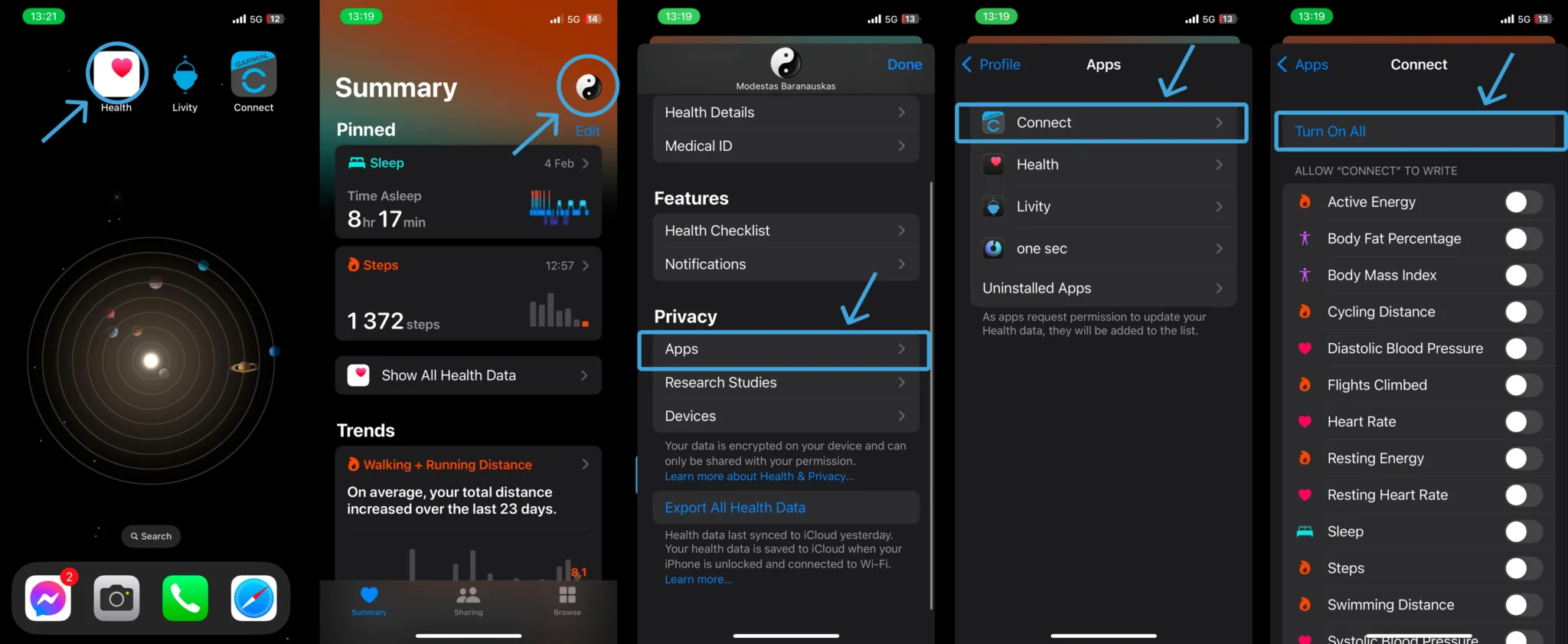
Note: If “Connect with Apple Health” doesn’t redirect, try this:
- 1. Open the Health app
- 2. Tap your profile (top right)
- 3. Select “Apps”
- 4. Tap “Connect”
- 5. Enable desired data sharing toggles
Important Setup Notes
Data syncs only when Garmin Connect app is open
Up to two weeks of prior data becomes available after enabling sharing
Apple Health prioritizes data sources — you may need to set Garmin Connect as primary
GPS activity data will not transfer to Apple Health
Optimizing Your Sleep Tracking
For the most accurate sleep tracking:
- •Wear your Garmin device consistently during sleep
- •Ensure the device maintains sufficient battery charge
- •Keep the Garmin Connect app updated
- •Regularly sync your device with Garmin Connect
Troubleshooting Tips
If data isn’t appearing in Apple Health:
- •Verify sharing settings in both apps
- •Check data source priorities in Apple Health
- •Ensure Garmin Connect runs in the foreground during syncs
- •Confirm your device model supports sleep tracking
Managing Data Privacy
You can control exactly what information gets shared:
- 1Open the Apple Health app
- 2Select your profile picture
- 3Choose “Apps and Services”
- 4Select “Connect app”
- 5Toggle specific categories on/off